Pipeline
The pipeline field allows you to configure which pipeline should be ran, and how. It makes it possible to choose to run only part of the meta pipeline, or even a single standalone pipeline. If set to auto, a list or a dict, the meta pipeline will be ran.
Name |
Description |
Type |
Default value |
|---|---|---|---|
pipeline |
The pipeline to use |
str, list[str], dict |
“auto” |
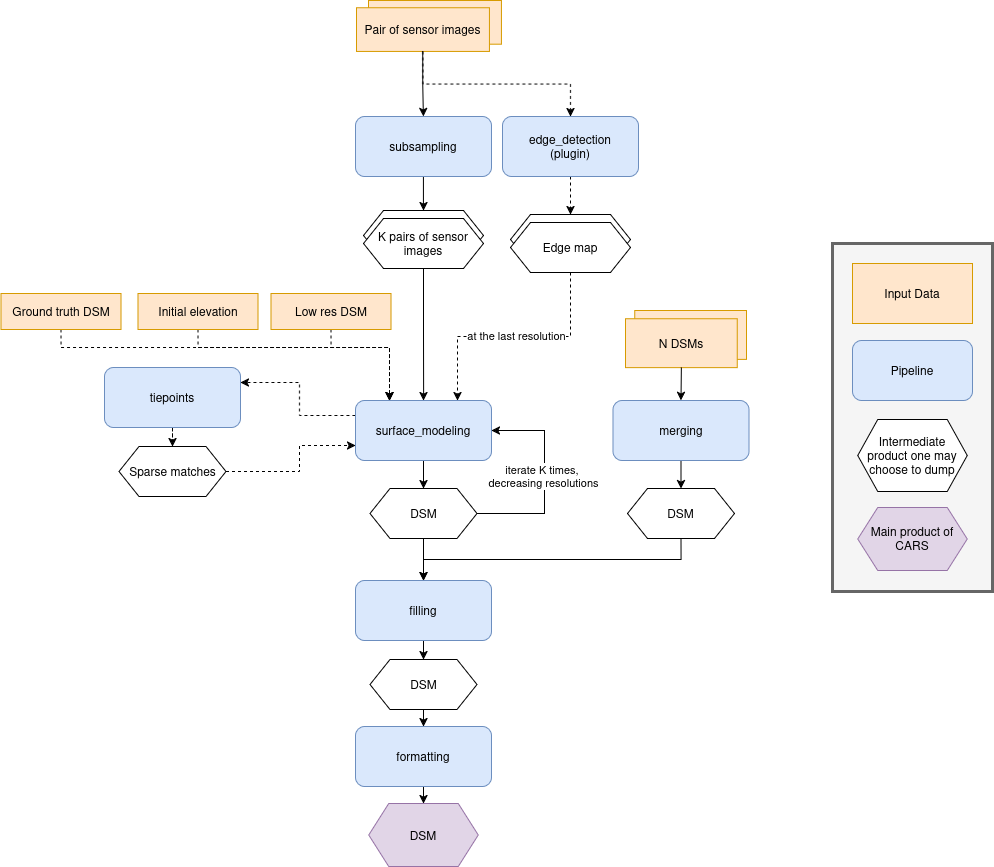
Below is a diagram representing a simplified version of the meta pipeline, as well as a short summary of each pipeline’s function in the meta pipeline. Each of them can be called by themselves, provided the right inputs.
Pipeline |
Per-resolution |
Description |
|---|---|---|
No |
Takes sensor images as input and generates subsampled versions at the resolutions specified in the configuration. |
|
Yes |
Computes a DSM by performing pixel-level stereo matching between a left and right image. |
|
Yes |
Extracts sparse tie points between two sensor images. These matches are used to improve geometric alignment in surface_modeling. |
|
No |
Fills holes or masked regions in the DSM using configurable interpolation or reconstruction methods. |
|
No |
Merges multiple DSMs into a single output without loss of color or classification information when provided. |
|
No |
Produces the final formatted output of the CARS pipeline by merging classification layers, selecting color bands, and structuring data. |
Each pipeline has its own applications and parameters.
They can be set using a key with the pipeline name at the root of the configuration file, itself containing applications and advanced, as shown below :
input:
  sensors:
    # sensor input images

pipeline: auto # use the meta pipeline

subsampling:
  # set the resolutions at which the pipeline will be ran
  advanced:
    resolutions: [16, 4, 1]

# pipelines ran at each resolution (surface_modeling and tiepoints) can have their
# parameters and application parameters set for all resolutions or a specific one separately.
surface_modeling:
  applications:
    all:
      triangulation:
        snap_to_img1: true
    4:
      triangulation:
        snap_to_img1: false
      dense_matching:
        method: census_sgm_default
{
    "input": {
        "sensors": null
    },
    "pipeline": "auto",
    "subsampling": {
        "advanced": {
            "resolutions": [
                16,
                4,
                1
            ]
        }
    },
    "surface_modeling": {
        "applications": {
            "all": {
                "triangulation": {
                    "snap_to_img1": true
                }
            },
            "4": {
                "triangulation": {
                    "snap_to_img1": false
                },
                "dense_matching": {
                    "method": "census_sgm_default"
                }
            }
        }
    }
}
Meta pipeline
The Meta pipeline is the name given to CARS’s default pipeline, who itself makes calls to all the other pipelines following the schema provided above. By setting a list of pipelines in the
pipelinefield, you can control which pipelines will be ran exactly.A dict will enable you to specify via true or false which pipelines will be ran, instead of relying on presence in the list. In the
used_conf.yamlfile, the dict is used for better clarity.For example, with this configuration :
input:
  sensors:
    img_1:
      image: path/to/image.tif
    img_2: path/to/image.tif

pipeline: [surface_modeling, formatting]
{ "input": { "sensors": { "img_1": { "image": "path/to/image.tif" }, "img_2": "path/to/image.tif" } }, "pipeline": [ "surface_modeling", "formatting" ] }The pipeline will run directly
surface_modeling, skippingtie_points(meaning there won’t be any grid correction using the SIFT) because it’s not part of the list, and directly going to formatting, skipping filling :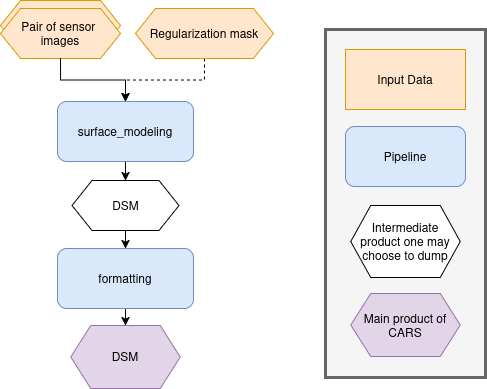
Using the configuration below, CARS will use the merging part of the meta pipeline, fill the DSM created as a result, and format it. Because a dict is used, every pipeline is specified.
input:
  dsms:
    dsm1: {} # a dsm
    dsm2: {} # a dsm
    dsm3: {} # a dsm

pipeline:
  merging: true
  filling: true
  formatting: true
  subsampling: false
  surface_modeling: false
  tie_points: false
{ "input": { "dsms": { "dsm1": {}, "dsm2": {}, "dsm3": {} } }, "pipeline": { "merging": true, "filling": true, "formatting": true, "subsampling": false, "surface_modeling": false, "tie_points": false } }Using the configuration below, CARS will perform surface modeling over the default resolutions output by subsampling. No grid correction will be performed using sparse matches. The output will be formatted.
input:
  sensors:
    img1: {} # a sensor image
    img2: {} # a sensor image

pipeline:
  subsampling: true
  surface_modeling: true
  tie_points: false
  formatting: true
  merging: false
  filling: false
{ "input": { "sensors": { "img1": {}, "img2": {} } }, "pipeline": { "subsampling": true, "surface_modeling": true, "tie_points": false, "formatting": true, "merging": false, "filling": false } }
Geometry plugin
This section describes configuration of the geometry plugins for CARS, please refer to Implement CARS Concepts section for details on plugins installation. The geometry plugin may be configured in multiple pipelines.
Name
Description
Type
Default value
Available values
Required
geometry_plugin
The plugin to use
str or dict
“SharelocGeometry”
“SharelocGeometry”
False
geometry_plugin allow user to specify other parameters, through a dictionary:
Name
Description
Type
Default value
Available values
Required
plugin_name
The plugin name to use
str
“SharelocGeometry”
“SharelocGeometry”
False
interpolator
Interpolator to use
str
“cubic”
“cubic” , “linear”
False
dem_roi_margin_initial_elevation
Additional margin for DEM : [factor_of_terrain_bounds, constant_margin_in_degrees]
list
[0.25, 0.02]
False
dem_roi_margin_rectification
Additional margin for epipolar grids, as a percentage of total width/height
int, float, >0
0.5
False
To use Shareloc geometry library, CARS input configuration should be defined as :
---
input:
  sensors:
    one:
      image: img1.tif
      geomodel:
        path: img1.geom
        model_type: RPC
    two:
      image: img2.tif
      geomodel:
        path: img2.geom
        model_type: RPC
  pairing:
  - - one
    - two
  initial_elevation:
    dem: path/to/srtm_file.tif

pipeline_name:
  advanced:
    geometry_plugin: SharelocGeometry
{ "input": { "sensors": { "one": { "image": "img1.tif", "geomodel": { "path": "img1.geom", "model_type": "RPC" } }, "two": { "image": "img2.tif", "geomodel": { "path": "img2.geom", "model_type": "RPC" } } }, "pairing": [ [ "one", "two" ] ], "initial_elevation": { "dem": "path/to/srtm_file.tif" } }, "pipeline_name": { "advanced": { "geometry_plugin": "SharelocGeometry" } } }The geometry_plugin must be specified for each pipeline using geometric models, such as surface_modeling, tie_points or filling.
geometry_plugin specify the plugin to use, but other configuration parameters can be specified :
pipeline_name:
  advanced:
    geometry_plugin:
      plugin_name: SharelocGeometry
      interpolator: cubic
      dem_roi_margin_initial_elevation: 0.1
{ "pipeline_name": { "advanced": { "geometry_plugin": { "plugin_name": "SharelocGeometry", "interpolator": "cubic", "dem_roi_margin_initial_elevation": 0.1 } } } }The particularities in the configuration file are:
geomodel.model_type: Depending on the nature of the geometric models indicated above, this field as to be defined as RPC or GRID. By default, “RPC”.
initial_elevation: Field contains the path to the file corresponding the srtm tiles covering the production (and not a directory !!)
geometry_plugin: Parameter configured to “SharelocGeometry” to use Shareloc plugin.
Parameter can also be defined as a string path instead of a dictionary in the configuration. In this case, geomodel parameter will be changed to a dictionary before launching the pipeline. The dictionary will be :
---
path: img1.geom
model_type: RPC
{ "path": "img1.geom", "model_type": "RPC" }Note
Be aware that geometric models must therefore be opened by Shareloc directly in this case, and supported sensors may evolve.
Save intermediate data
The save_intermediate_data flag can be used to activate and deactivate the saving of the possible output of applications.
It is set in the advanced category of any pipeline, and can also be overloaded in each application separately. It defaults to false, meaning that no intermediate product is saved. Intermediate data are saved in the dump_dir folder found in CARS output directory, with a subfolder corresponding to each application.
For example, setting save_intermediate_data to true in surface_modeling/advanced and to false in surface_modeling/applications/point_cloud_rasterization will activate product saving in all surface modeling applications except point_cloud_rasterization. Conversely, setting it to false in surface_modeling/advanced and to true in surface_modeling/applications/point_cloud_rasterization will only save rasterization outputs.
Intermediate data refers to all files that are not part of an output product. Files that compose an output product will not be found in the application dump directory. For example if dsm is requested as output product, the dsm.tif files and all activated dsm auxiliary files will not be found in rasterization dump directory. This directory will still contain the files generated by the rasterization application that are not part of the dsm product.
The following example enables save_intermediate_data for all applications at all resolutions :
---
# pipeline launched a single time
pipeline_name:
  advanced:
    save_intermediate_data: true

# pipeline launched at multiple resolutions
surface_modeling:
  advanced:
    all:
      save_intermediate_data: true
{ "pipeline_name": { "advanced": { "save_intermediate_data": true } }, "surface_modeling": { "advanced": { "all": { "save_intermediate_data": true } } } }This in turn will produce the following folder structure :
cars_output_folder/
    dsm/
    intermediate_data/
        surface_modeling/
            out_res16/
                dsm/
                dump_dir/
            out_res4/
                dsm/
                dump_dir/
            out_res1/
                dump_dir/
The following example enables save_intermediate_data for all applications at resolution 16, while keeping it disabled for both resolution 4 and resolution 1 :
---
pipeline_name:
  advanced:
    16:
      save_intermediate_data: true
    1:
      save_intermediate_data: false
{ "pipeline_name": { "advanced": { "16": { "save_intermediate_data": true }, "1": { "save_intermediate_data": false } } } }